
Smartphones have become essential tools for communication, work, entertainment, and everyday tasks. However, even a powerful device can develop performance problems over time. Apps may take longer to open, the screen might freeze unexpectedly, the battery may drain quickly, or the phone may become unusually hot during normal use. These problems can be frustrating, especially when you depend on your device throughout the day.
Fortunately, many smartphone performance issues can be resolved without purchasing a new phone. Understanding the cause of the problem is the first step toward finding a practical solution. By following reliable troubleshooting methods and maintaining good device habits, users can often improve speed, stability, and battery life. Technology enthusiasts looking for more useful digital tips can also explore MagfuseHub for additional technology-related information and online resources.
1. Restart Your Smartphone to Resolve Temporary Glitches
One of the simplest ways to fix common smartphone performance issues is to restart the device. Smartphones run numerous background processes, including notifications, synchronization services, and application tasks. Occasionally, these processes encounter temporary errors that affect overall performance.
Restarting the phone closes active processes and gives the operating system a fresh start. It can resolve minor freezing, unresponsive screens, delayed notifications, and applications that refuse to open correctly.
How to restart your phone
- Android: Press and hold the power button, then select Restart if the option appears.
- iPhone: Use the appropriate button combination for your model to access the power-off slider, then turn the device back on.
If the screen is completely frozen, you may need to perform a force restart using the manufacturer’s recommended button combination.
Restarting will not fix every underlying problem, but it is a useful first step because it is quick, simple, and does not normally remove personal data.
2. Free Up Storage Space to Improve Phone Speed
Insufficient storage is another common reason smartphones become slow. When a device has very little free space, installing updates, saving files, downloading applications, and processing temporary data can become difficult.
Photos, videos, downloaded documents, messaging attachments, and unused applications can gradually consume available storage.
Practical ways to free up space
Start by checking your device’s storage settings to identify what occupies the most space. Then consider these steps:
- Delete duplicate photographs and unnecessary screenshots.
- Remove downloaded videos and documents you no longer need.
- Uninstall applications that have not been used for several months.
- Transfer important media files to a trusted computer or cloud storage service.
- Review large attachments stored in messaging applications.
- Clear temporary application or browser cache where appropriate.
Avoid deleting unfamiliar system files because doing so can create additional problems.
Android phones may become less responsive when available storage drops below approximately 10 percent. iPhones also benefit from maintaining adequate free space, although the recommended amount varies with the device and its operating system.
Freeing storage can make updates easier and reduce storage-related problems. However, it cannot overcome every limitation of an older processor or a worn-out battery.
3. Update Your Operating System and Applications
Outdated software can cause compatibility problems, application crashes, security vulnerabilities, and unexpected performance issues. Developers regularly release updates to address bugs, improve stability, and support newer features.
If your phone has started lagging after installing an application, check whether a newer version is available. The problem may already have been addressed by its developer.
Steps to update your device
For Android, open Settings and look for System Update or Software Update. Menu names differ between manufacturers.
For iPhone, open Settings, select General, and tap Software Update.
You should also visit the official app store to check for application updates. Before installing a major operating system update, connect to a reliable network, ensure the battery has sufficient charge, and back up important information.
Updates are not guaranteed to make every older device faster. In some cases, a new version may introduce temporary background activity while files are being organized. Allow the device time to finish processing after the update and check whether performance improves.
4. Identify Applications That Consume Too Many Resources
Some applications use considerable memory, processing power, battery capacity, or network data. Social media platforms, games, video editors, and navigation tools can be particularly demanding during active use.
If your smartphone becomes slow when opening a particular application, that app may be contributing to the problem.
Find and manage resource-intensive apps
Open your phone’s battery or application settings and review which apps consume the most resources. If an unfamiliar application uses excessive battery or data, investigate it before deciding what to do.
You can try the following measures:
- Update the application.
- Restart it if it becomes unresponsive.
- Restrict unnecessary background activity.
- Remove applications you no longer need.
- Reinstall a malfunctioning application after backing up any important app-specific information.
On Android, clearing an application’s cache may help resolve certain loading problems. Avoid selecting Clear Data or Clear Storage unless you understand the consequences, as this can remove local settings or files.
On iPhone, unnecessary force-closing of applications is generally not recommended because reopening them requires additional processing. Close an app when it is frozen or malfunctioning rather than routinely closing everything.
5. Fix Smartphone Overheating Problems
Excessive heat can affect smartphone performance. When a device becomes too hot, its operating system may reduce processor speed to protect internal components. Users may notice lagging, slower charging, reduced gaming performance, or temporary camera limitations.
Overheating can occur during demanding games, extended video recording, navigation, fast charging, or use in direct sunlight. Background processes and poorly optimized applications can also contribute.
How to cool down an overheating phone
First, stop demanding activities and move the phone away from direct sunlight. If a game or application appears responsible, close it and allow the device to cool naturally.
Additional precautions include:
- Avoid leaving the phone inside a hot vehicle.
- Remove a thick protective case temporarily if it traps heat and the manufacturer permits it.
- Pause charging if the device becomes unusually hot.
- Use a compatible charger and cable.
- Reduce demanding gaming or recording settings when necessary.
Never place a hot smartphone in a refrigerator or freezer. Sudden temperature changes and condensation can damage internal components.
If the phone repeatedly overheats during light use, displays a temperature warning, or has a swollen battery, stop using or charging it and seek professional assistance.
6. Improve Battery Life and Charging Performance
A battery that drains rapidly can make a smartphone less convenient and may indicate an underlying issue. Common causes include high screen brightness, extensive location tracking, weak network signals, demanding applications, and an aging battery.
Start by reviewing battery usage in Settings. Identify applications that consume unusually large amounts of power and determine whether their activity is expected.
Reducing screen brightness, shortening the screen timeout, and limiting unnecessary background refresh can help. You can also enable Battery Saver on Android or Low Power Mode on iPhone when longer battery life is more important than maximum performance.
Check your battery’s condition as well. On supported iPhones, Battery Health is available in Settings. Android manufacturers may provide battery information or diagnostic tools through their own settings or support applications.
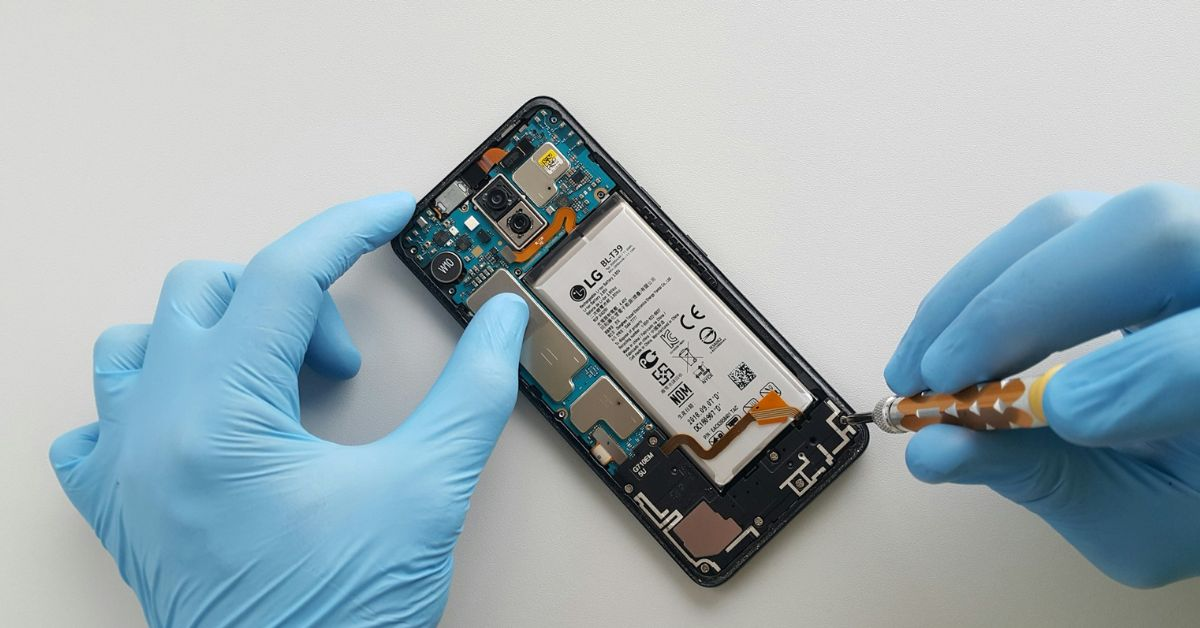
If the battery has significantly deteriorated, software adjustments may provide only limited improvement. A professional battery replacement may be more effective than repeatedly changing settings.
7. Troubleshoot Slow Internet and Connectivity
Sometimes a phone appears slow even though its hardware is functioning normally. The actual problem may be an unreliable Wi-Fi connection, weak mobile signal, network congestion, or a temporary service interruption.
For example, a video may buffer while offline applications continue to work smoothly. This suggests that the connection, rather than the phone’s processing speed, may be responsible.
Try switching between Wi-Fi and mobile data to determine whether the issue persists. Move closer to the router, restart the router if appropriate, or test the connection using another device.
If only one application experiences connectivity problems, check whether its service is operating normally and whether it requires an update. If multiple devices have the same connection problem, contact your internet or mobile service provider.
Resetting network settings can sometimes resolve persistent connection issues, but remember that it may remove saved Wi-Fi passwords and other network configurations.
8. Protect Your Phone From Suspicious Applications
Unexpected pop-ups, unexplained battery drain, excessive data usage, and persistent slowdowns can sometimes indicate a problematic or malicious application. These symptoms do not automatically mean that a phone has malware, but they deserve attention when they appear together.
Download applications from official stores whenever possible. Review permissions before granting access to your camera, microphone, contacts, or location. Remove unfamiliar applications that you do not trust, and keep your operating system updated.
Android users can use Google Play Protect to check applications for potential security threats. iPhone users should review installed apps, configuration profiles, and account security if they notice suspicious behavior.
Avoid installing applications that promise instant performance improvements but request unnecessary permissions or display aggressive advertisements. Many third-party phone-cleaning tools provide little benefit and may introduce further problems.
For additional troubleshooting guidance, consult Google’s official Android Help guide for speeding up a slow device, which explains recommended steps for storage, software updates, and problematic applications.
9. Consider a Factory Reset Only as a Last Resort
If your phone continues freezing, crashing, or running slowly despite trying the previous solutions, a factory reset may help. This process restores the device to its original software configuration and removes installed applications, personal settings, and locally stored data.
However, a factory reset should not be your first option. It is time-consuming, and it will not repair physical damage, a failing battery, or every hardware-related performance problem.
Before proceeding, back up your photographs, contacts, messages, documents, and other important information. Confirm that you can access your account credentials and understand how to restore your backup.
After resetting the device, install essential applications gradually rather than immediately reinstalling everything. This approach can help you identify whether a particular application was responsible for the original problem.
If the phone remains slow after a clean reset, contact the manufacturer or a qualified repair technician for further diagnosis.
Conclusion
Smartphone performance issues do not always mean that a device has reached the end of its useful life. In many cases, restarting the phone, freeing storage, updating software, managing demanding applications, and addressing overheating can produce noticeable improvements.
The most effective solution depends on identifying the actual cause instead of applying every possible fix at once. Start with simple troubleshooting steps, monitor the results, and move toward more advanced measures only when necessary.
Regular software updates, sensible storage management, safe charging practices, and careful application choices can help keep a smartphone reliable for longer. When problems persist despite these efforts, professional diagnosis can determine whether a hardware repair or device replacement is justified.